
 |

|
| ActiveWin: Reviews | Active Network | New Reviews | Old Reviews | Interviews |Mailing List | Forums |
|
|
|
|
|
DirectX |
|
ActiveMac |
|
Downloads |
|
Forums |
|
Interviews |
|
News |
|
MS Games & Hardware |
|
Reviews |
|
Support Center |
|
Windows 2000 |
|
Windows Me |
|
Windows Server 2003 |
|
Windows Vista |
|
Windows XP |
|
|
|
|
|
|
|
News Centers |
|
Windows/Microsoft |
|
DVD |
|
Apple/Mac |
|
Xbox |
|
News Search |
|
|
|
|
|
|
|
ActiveXBox |
|
Xbox News |
|
Box Shots |
|
Inside The Xbox |
|
Released Titles |
|
Announced Titles |
|
Screenshots/Videos |
|
History Of The Xbox |
|
Links |
|
Forum |
|
FAQ |
|
|
|
|
|
|
|
Windows XP |
|
Introduction |
|
System Requirements |
|
Home Features |
|
Pro Features |
|
Upgrade Checklists |
|
History |
|
FAQ |
|
Links |
|
TopTechTips |
|
|
|
|
|
|
|
FAQ's |
|
Windows Vista |
|
Windows 98/98 SE |
|
Windows 2000 |
|
Windows Me |
|
Windows Server 2002 |
|
Windows "Whistler" XP |
|
Windows CE |
|
Internet Explorer 6 |
|
Internet Explorer 5 |
|
Xbox |
|
Xbox 360 |
|
DirectX |
|
DVD's |
|
|
|
|
|
|
|
TopTechTips |
|
Registry Tips |
|
Windows 95/98 |
|
Windows 2000 |
|
Internet Explorer 5 |
|
Program Tips |
|
Easter Eggs |
|
Hardware |
|
DVD |
|
|
|
|
|
|
|
ActiveDVD |
|
DVD News |
|
DVD Forum |
|
Glossary |
|
Tips |
|
Articles |
|
Reviews |
|
News Archive |
|
Links |
|
Drivers |
|
|
|
|
|
|
|
Latest Reviews |
|
Xbox/Games |
|
Fallout 3 |
|
|
|
Applications |
|
Windows Server 2008 R2 |
|
Windows 7 |
|
|
|
Hardware |
|
iPod Touch 32GB |
|
|
|
|
|
|
|
Latest Interviews |
|
Steve Ballmer |
|
Jim Allchin |
|
|
|
|
|
|
|
Site News/Info |
|
About This Site |
|
Affiliates |
|
Contact Us |
|
Default Home Page |
|
Link To Us |
|
Links |
|
News Archive |
|
Site Search |
|
Awards |
|
|
|
|
|
|
|
Credits |



|
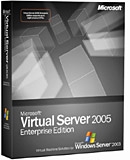
Product: Microsoft
Virtual Server 2005 |
When virtual was first introduced in the computational sense, it applied to things simulated by the computer, like virtual memory that is, memory that is not actually built into the processor. Over time, though, the adjective has been applied to things that really exist and are created or carried on by means of computers. Virtual conversations are conversations that take place over computer networks, and virtual communities are genuine social groups that assemble around the use of e-mail, web pages, and other networked resources. (Source: Dictonary.com; http://dictionary.reference.com/search?q=virtual)
An operating system is the layer of software that communicates directly with the hardware components on a physical machine and provides the platform for applications to run on top of it. For the most part, this relationship was strictly a one-to-one relationship. In other words, the operating system would take ownership of the drivers needed to communicate with the hardware components and would not allow other software to communicate directly with it. Thus, only one operating system could run on a physical machine at a time. With virtual machine technology though, all that has changed. Now you can run multiple operating systems simultaneously on a host machine using Microsoft Virtual Server 2005.
- Portable Virtual Hard Disks Virtual machines are encapsulated in portable Virtual Hard Disks (VHDs), so you get flexible configuration, versioning, and deployment.
- Flexible resource management Virtual Server 2005 gives you fine-grained control by supporting CPU resource allocation with both weighting and constraint methods.
- Virtual networking capability Virtual networking gives you more secure, flexible networking with guest-to-guest, guest-to-host, and guest-to-net connectivity.
- Open COM API Take advantage of a comprehensive COM API that enables complete scripted control of virtual machine environments.
- Supports up to 32 processors Virtual Server 2005 Enterprise Edition supports up to 32 processors.
virtual machine scenarios
Why would anyone want to run
multiple operating systems? There are many scenarios where organizations can
realize the benefits of virtual machine technology.
Consider the following scenarios:
- Testing application deployments � having the ability to test a role out before doing so in a production environment could potentially save time and money.
- Technical support environments - imagine taking a technical support call and having the ability to launch a virtual instance of the customers environment, or be able to run the specific custom or proprietary application that the customer needs support with in a virtual machine in order to walk through the troubleshooting steps with the customer.
- Software development - the development community benefits from virtual environments as well with the ability to run their latest builds on different platforms to see how they operate without having to have many different machines in a testing lab.
- Server consolidation - using Virtual Server 2005 as a mean to consolidate servers, organizations now have the ability to move their legacy applications, which may have been designed to run specifically on legacy environments such as Windows NT, and place them on new hardware in a virtual machine, realizing the benefits of the increased performance of the new hardware.
- Backup restoration and data validation
- I have also heard of organizations using virtual machine technology to
test their back up system by actually restoring their backups from tape
into a virtual machine to verify that the back up completed successfully
and that their data is valid.
| Review Quotes |
| "There are many scenarios where organizations can realize the benefits of virtual machine technology." |
installation and settings
| Review Quotes |
| "Virtual Server can be installed on any version of Windows Server 2003, including Small Business Server." |
The Virtual Server 2005
installation files are very small, weighing in at less than 20 MB. Virtual
Server can be installed on any version of Windows Server 2003, including
Small Business Server. It can also be installed on a Windows XP Professional
host operating system, although for non-production use only. Windows 2000
Server host operating systems are not supported.
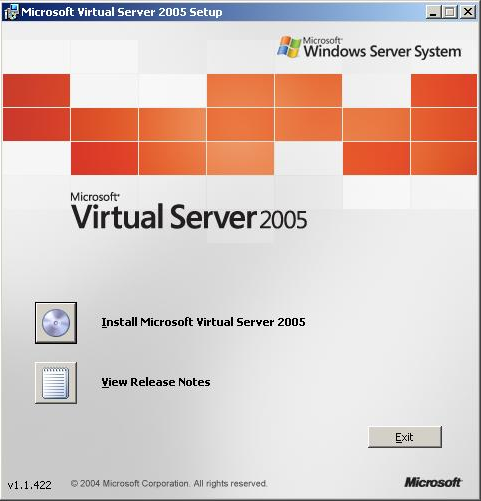
Installing Virtual Server 2005 is simple, with the on screen instructions
leading you through the process.
.JPG)
The IIS Admin and World Wide Web Publishing services are required to run Virtual Server. During installation, you specify the port which the virtual server service will be accessed, the default port being port 1024.
.JPG)
Once installed, a program group is created with a link to the Virtual Server Administration Website, which you can access using Internet Explorer or your favorite web browser. Configuration and administration of all virtual machines is done through the Virtual Administration Website.
creating virtual machines
To create a new virtual machine, follow the Create link via the Virtual Server Administration Website. You start by specifying the basic information for the virtual machine you are creating. This page allows you to name the virtual machine, allocate the RAM and hard drive, or use an existing hard drive if one has already been created. You can also specify the virtual network setting for the virtual machine. Once that is complete, you click ok to continue to the virtual machine configuration page. This allows you to configure additional settings for the virtual machine, such as the COM ports, floppy and CD ROM drive settings and other settings if they pertain to the virtual machine you are creating. Installing an operating system into a virtual machine is accomplished in the same manner in which you would install one onto a physical machine, so it is on this configuration page that you would set the CD ROM to either use the physical drive on the host machine, or to capture an ISO file by pointing it to the fully qualified path of the ISO.
.JPG)
Now that you have your new virtual machine
configured, you can proceed to install the supported operating system of
your choice. Start by clicking on the virtual machine thumbnail at the top
of the configuration page to boot the virtual machine. Installation proceeds
just as a typical installation on any physical machine would.
To give focus to the virtual machine, you must click inside the virtual
machine window. You can then work within the virtual machine in order to
click and type the commands necessary to complete the installation. Once
installation is complete, and you new virtual machine is up and running, you
can install the virtual machine additions, which improves the performance of
the virtual machine and allows the mouse to integrate seamlessly with the
host machine.
.JPG)
.JPG)
Virtual Server runs as a service, so you
can close the browser interface and still access the virtual machine just as
you would access a physical machine attached to your network via My Network
Places. You can also use Remote Desktop to access the desktop of the virtual
machine.
Once you have your virtual machines installed and running, you can being to
network them together using virtual networks. You can attach your virtual
machines to the physical network card, or attach them to an internal virtual
network which allows them to network with other virtual machines.
product versions & pricing
Virtual Server 2005 comes in two versions, Standard Edition and Enterprise Edition. Both versions include the same features, with the exception of the number of processors supported. Standard Edition supports up to 4 physical processors and Enterprise Edition supports up to 32 physical processors. Standard Edition is priced at $499 and Enterprise Edition is priced at $999.
final comments
Undoubtedly, Virtual Server 2005 makes sense for many situations. Cost savings and time savings can be immediately realized upon deployment. Surely there are many servers out in the workforce that are underutilized, that is to say that the processor never sees it's usage come anywhere near 100%. That being the case, running another operating system on top of that hardware instantly makes better use of the investment you have already made in the infrastructure.
| How It Grades |
| Installation:
95% Ease of use: 90 Speed: 97% Options: 90% Manual: N/A Price: 92% Overall: 92.8% |
Download the Virtual Server 2005 Evaluation Kit here
| Specs & Package | |
| Overall Score | 92.8% |
| Version Reviewed |
Virtual Server 2005 Enterprise Edition |
| Release Date | Out now |
| In The Box? | N/A |
| The Good Points | Great performance of guest OSes |
| The Bad Points |
Inability to browse for .iso images No 64-bit support |
| Similar To |
VMWare GSX Server Virtual PC |
| Reviewers PC Setup |
AMD Athlon 64 3200+ |
| PC Required | Virtual Server 2005 System Requirements |


