 |
|
||||||||||||||||||||||||||||||||||||||||||||||||||||||||||||||||||||||||||||||||||||||||||||||||||||||||||||||||||||||||||||||||||||||||||||||||||||||||||||||||||||||||||||||||||||||||||||||||||||||||||||||||||||||||||||||||||||||||||||||||||
|
|||||||||||||||||||||||||||||||||||||||||||||||||||||||||||||||||||||||||||||||||||||||||||||||||||||||||||||||||||||||||||||||||||||||||||||||||||||||||||||||||||||||||||||||||||||||||||||||||||||||||||||||||||||||||||||||||||||||||||||||||||
|
 |
My aim is not to turn this into a monolithic review, just to provide an essential look at some parts of Vista that are likely to be regularly used by the average Windows user and features that will be new and interesting to some. Also, the pre-view is meant to give a user perspective of some aspects Vista and how it stands out in comparison to Windows XP. Microsoft has done an excellent job of providing thorough information about �all� of Vista; these include the Product Guide, MSDN, Vista MSDN Blog�s, TechNet and the Windows Vista web page. Below are links to those resources:
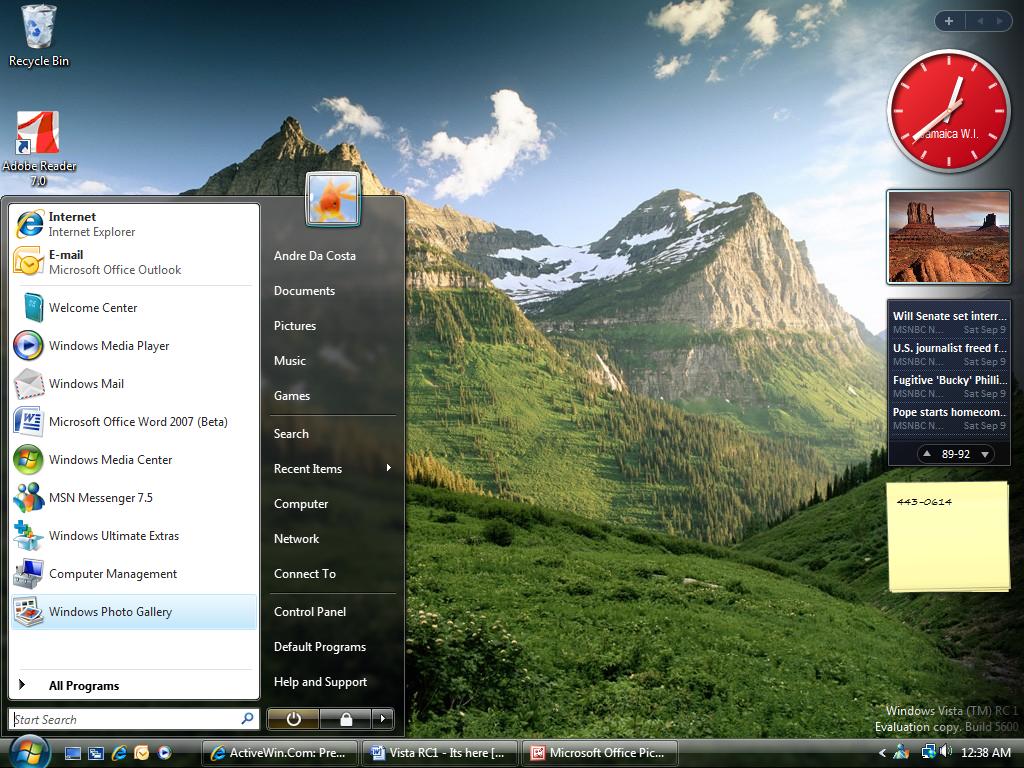
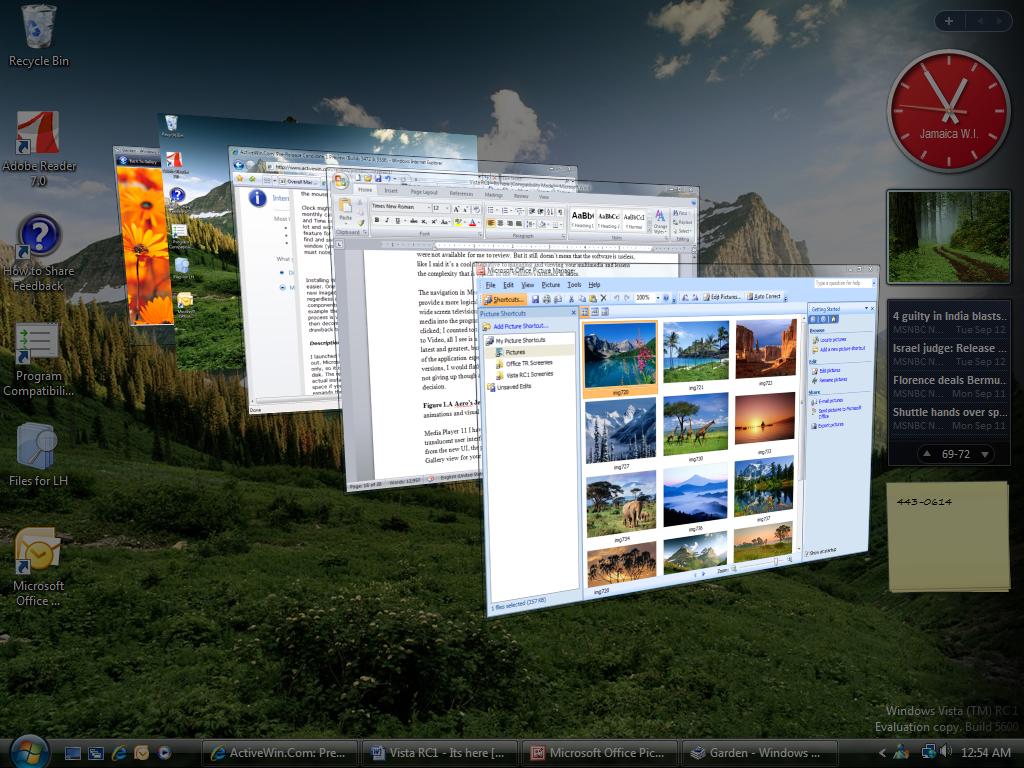
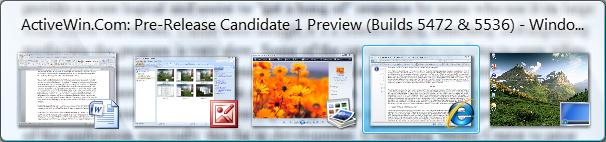
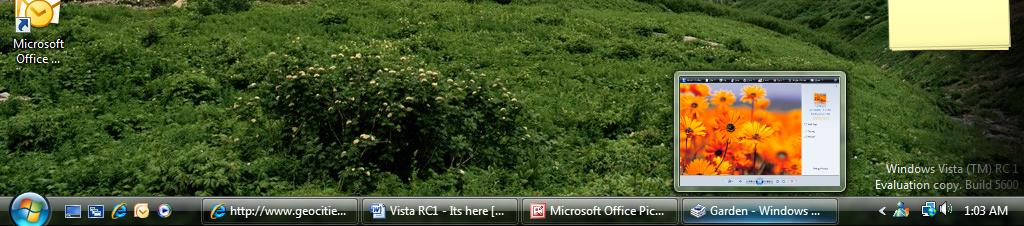
Windows Vista BETA 2 Product Guide I hope you find this preview useful and enlightening, be sure to send me your feedback and comments, and tell me what you think if you are also testing Vista, your likes and dislikes. You tend to get a bit jaded about beta software especially after testing 12 pre-release builds of it over a 14 month period, slowly watching it at times fall and progress. Windows Vista has been five years in the making; throughout that time we have seen Microsoft delay the release of this �major upgrade� over and over and over again. But the Company throughout that tumultuous time did manage to pick up the pieces and literally start all over again. Now with the 13th and possibly final test build; Release Candidate 1, we are only a stones throw away from Release To Manufacturing (RTM). Microsoft will have two release phases for Windows Vista, one for Volume License Customers (businesses) starting this November and another for consumers sometime in January 2007. The Release Candidate 1 build of the OS I tested has shown tremendous improvements in areas such as stability and performance on the x86 RC1 build, which gives me the confidence to say, its definitely ready for daily usage, the general feel of the OS is more responsive and applications also launch faster. In fact, my bug count for Windows Vista has dropped nearly to zero with build 5600, which gives me greater confidence in Vista as my main operating system with this milestone release. Yes, there are some issues, but it�s nothing that has held me back at this point and if its hardware related, it�s most likely an IHV (Independent Hardware Vendor) issue and we should start seeing more stable and updated drivers appear soon. Like its predecessor Windows XP, Vista has improved deployment options and device driver detection; these improvements have proven to be very user friendly and reduced the time it takes to get Windows up and running. Vista is not without its demons, areas of the OS such as compatibility still remains an issue and users will encounter cases of some of their favorite applications and/or hardware devices either not working properly or not working at all. Other parts of the user interface Microsoft claims to be new and improved feel like extra steps to accomplish simple task. A new feature User Access Control is sure to cause more annoyance than its intended purpose, which is to protect users although it has been lax since BETA 1 to provide a convenient response to actions executed by the user. Windows Vista will be available in six editions, please note this preview also contains information about the BETA 2 (build 5384), July CTP (build 5472) and the recent Pre-RC1 (build 5536) release. Microsoft plans to release Windows Vista in six editions, they include: Starter, Home Basic, Home Premium, Business, Enterprise and Ultimate. Each SKU (Stock Keeping Unit) has specific features targeting a melting pot of users, from emerging markets, enterprise customers to life style computer users. Some of the features include, improved Search, wireless/networking and authentication, collaboration, improved security, enhanced multimedia, improved group policy editor, file management, 64-bit computing and support for some of the latest hardware on the market. Actually, if you were to separate platform and SKU�s then add them up; Vista would total to a whopping thirteen flavors�, seventeen if you count in the �N� Editions available only in the European Union. The system requirements for Windows Vista are in some ways welcome and difficult to comprehend especially for someone who might be coming from a P3 1GHz with 64 MBs of video memory. Performance will ultimately depend on your system specifications, the two main hardware components that matter the most to Windows Vista are RAM and Graphics memory. Microsoft has recommended that a Vista capable system should have the following: an 800 MHz processor (or better), 512 MBs of RAM (minimum recommended) or more (128 GBs of RAM maximum depending on the edition and platform) and 15 GB�s of free hard disk space. As for Graphics memory, your satisfaction will depend on your desire, whether you want the new Windows Aero theme or settle for one of the less graphically intense options such as the familiar Windows Classic or stripped down Windows Aero Basic. Windows Aero, which is the ultimate experience, requires a minimum of 64 MBs of video RAM, a Direct X 9 compatible card, 1 GB of dual channel RAM required if you are using onboard graphics. Of course, if you want the best performance and experience, a dedicated graphics card is recommended, 128 MBs or �higher�. My nVidia Geforce FX 5200 (128 MB AGP) card although old by today�s standard run�s the Aero visuals, but I don�t get the full experience in some areas. When I ran Slide Show from the Pictures folder or Photo Gallery my photos were shown in Basic mode instead of using the new photo album style effects. The other Windows themes (Classic and Aero Basic) are in the same category with Windows XP and will run just fine with onboard graphics or slower cards. It will be interesting to see how this affects consumer-buying decisions when the time to buy a new PC arrives. Of course, not all Windows Vista Editions utilize Windows Aero; these include Starter Edition and Home Basic, which are considered to be introductory versions of the OS targeting emerging markets, first time PC buyers and one PC homes. The desktop in Windows Vista remains� consistent but other parts of the OS have been extremely updated to feature a much cleaner, sleeker/professional look and feel that presents a more mature color palette called Windows Aero. Some elements of this new theme include semi-translucent window frames, window animations, transitions and high-resolution icons that are more life like and easier to understand. The Start menu panel has also been radically overhauled to provide a productive, logical layout when accessed. To best summarize Vista�s user interface, it�s an earthy, human tone that creates a deeper connection with the user. One of the Start menu�s most notable features is the integrated Search box, which is probably best described as the gateway to accessing all your program�s and stored files, which includes, documents, music, photos, or favorite web page�s just to name a few. You can even search the Internet from the Start menu; Google�s amber alert should be on about now.
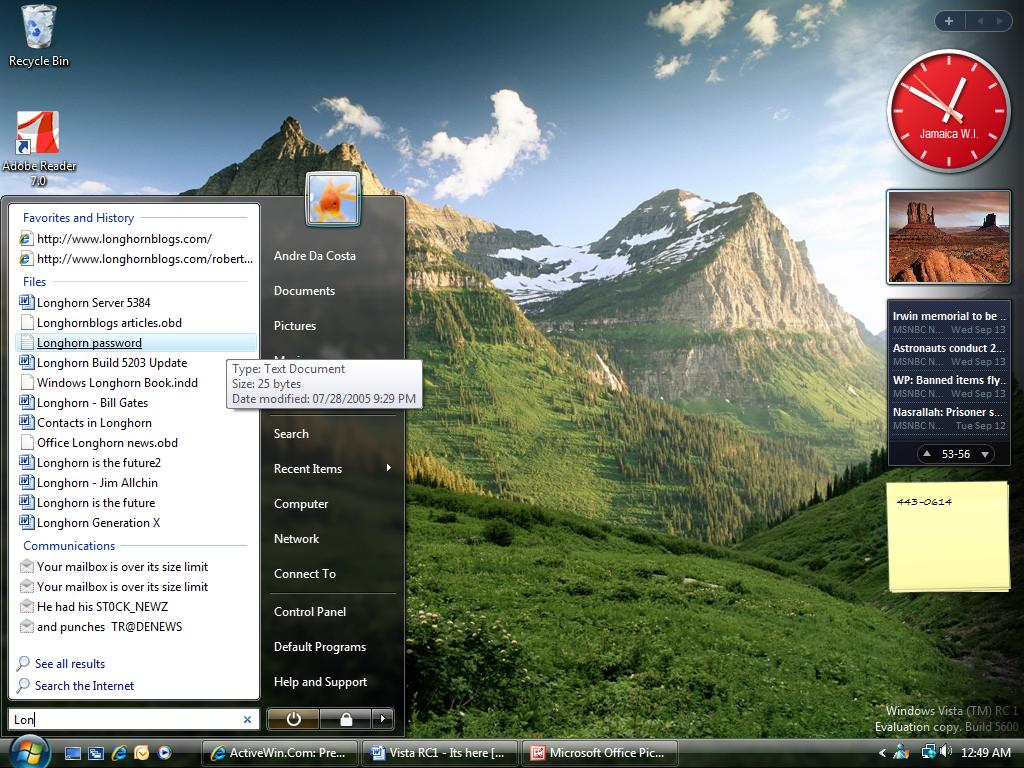
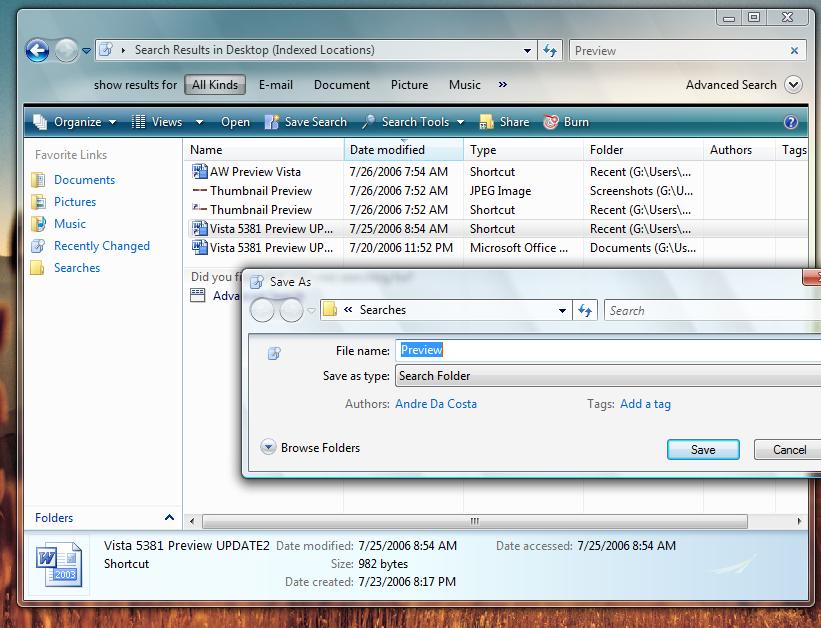
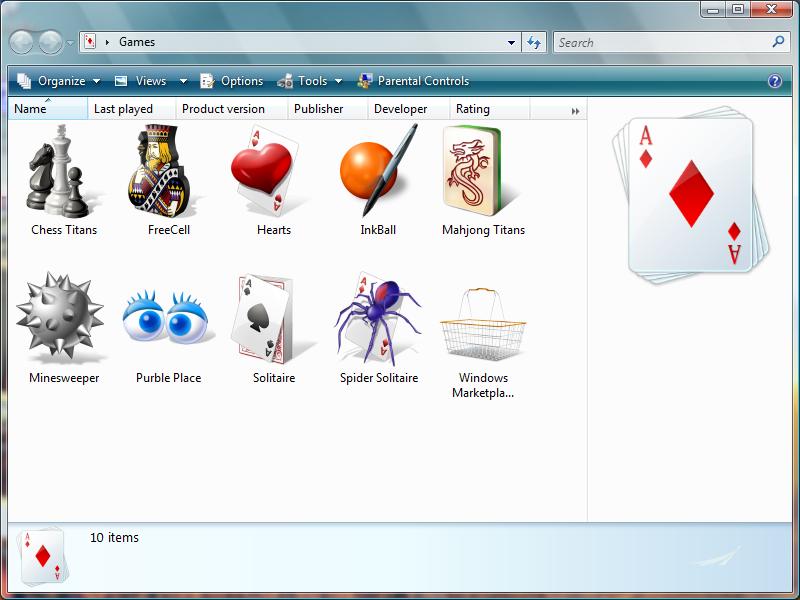
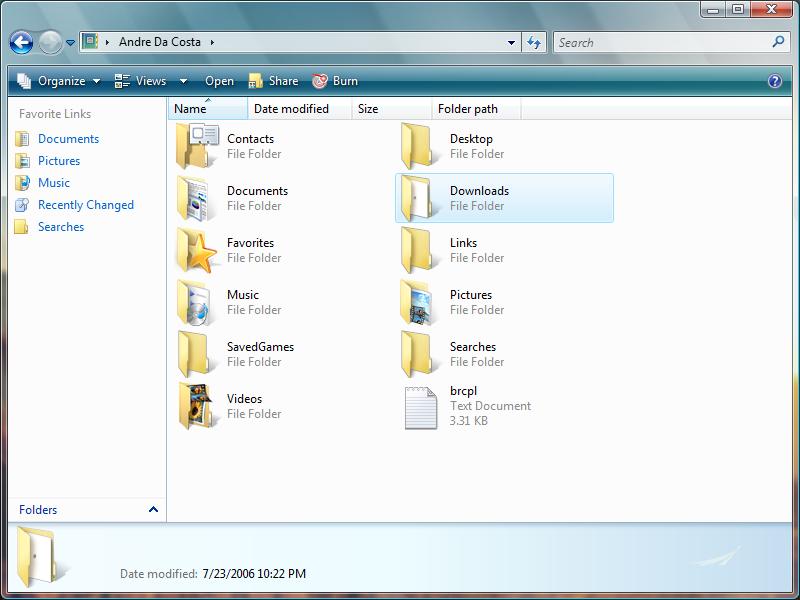
The Search feature in Vista is very impressive; just start typing a few letters of a keyword, for example �win� and a list of entries that start with �Win� are populated on the left pane. Type more letters or a specific part of the file name and it will be filtered further down to that specific file or most likely choices. This is all made possible by the new Indexing Engine, which continually indexes the name and contents of your files. This is also made possible by Metadata which is information about data contained within a file, for example, brand camera used to take a digital photo, date taken, author and file type. You might notice after copying over your files to Vista the performance of the OS might depreciate and your CPU usage accelerate, this is usually the indexing engine running in the background, over a few days you begin to see the performance of the system improve. You can check the Indexing applet located in Control Panel to see how many files have been indexed and configure it to index other locations in the system or additional partitions. Getting accustomed to the new Start menu is no effort and users will welcome the many changes that have taken place for the better. Most notable is the panel links such as My Documents and My Pictures have removed their familiar prefixes to just being listed as Documents, Pictures and Music. Two new links included are the Games Explorer and User Folder, Games folder which is a link of the Games group added to the main panel, stores all your installed third party games and Windows Games and offers rating information and a link to purchase additional games online using Windows Market Place. A lot of the traditional Windows Games have been updated with stunning graphics and effects to give the user an attractive look and feel. Four new games included are Ink Ball (best played on a Tablet PC), Chess Titans, Purble Place (my 6 year old nephew is addicted to it) and Mahjong Titans, which will provide an alternative to the better-known titles that Windows users have been playing for years. Unfortunately one of my favorites Pin Ball has been removed, the reason for this is a bit cloudy but it has something to do with it not meeting Microsoft�s compatibility bar in Vista. If you can�t do without it, simply copy over the Pin Ball folder from XP and launch the games executable and you are back in business. The Search Explorer in Windows Vista presents a simplified layout when launched. At first you will see an empty canvas with two hints, �To begin, type in the search box� and �To search more of your computer, use Advanced Search�. The Command bar, list the common content filters you can use to refine your search queries. Searching in Vista is very instantaneous, thanks to the new indexing engine, results immediately appear once you type in the search box, of course accuracy is not perfect, especially if you have tones of files relating to the same topic. But the tools are there to help refine your results; so I decided to use the Advanced Search tools and was presented with the familiar Criteria Fields from prior versions of Windows. In unison with the indexing engine, I was able to more accurately achieve the results I wanted by defining file types and locations. For instance, I was searching for Word documents with the topic Longhorn in them within a certain period from the Documents folder. Instantly I was presented with a list of Word documents that fit my desired results. I could take advantage of these results for future use by saving the Search Results, which would then populate the folder whenever files are created relating to the topic. User Folder located at the top of Start Panel (represented by the account name) is a centralized location to access all of the common Explorers, some of these folders include: Downloads, Saved Searches, Videos, Saved Games in addition to the default content Explorer links on the Start Menu. Another big change to the Start menu is the Turn Off Computer modal dialog, which has been exchanged for a quicker context sensitive menu integrated into the Start panel. Just hover your mouse pointer over the arrow to the extreme left of the Padlock button at the bottom and a list pops out with the familiar options such as Shutdown, Switch User, Log Off, Hibernate and Sleep. I must warn users, don�t hit the Power Button on the Start menu unless you are planning to hibernate your PC. Windows Vista�s new Start menu and Taskbar offers strong visual cues that will make using the OS daily more productive, fun and friendly. One of these new features is the Thumbnail preview of open applications, simply hover your mouse pointer over an application window button on the Taskbar and you will see a miniature preview of the window. Each window stacked in a Group also displays a preview when the mouse pointer is hovered over each button within the stacked group. The Notification Area clock might not look different, but when you click it, a Date and Time Settings floating dialogue is revealed with quick access to a monthly calendar and stunning full size clock. Click the Date and Time Settings link and a separate dialogue will reveal additional settings, which includes options for configuring your Time Zone, setting up additional clocks (for persons who travel a lot and work in multiple time zones, this will definitely provide a handy way to keep track of time in different locations). A new feature for cycling through lots of windows, called Flip 3D displays a Rolodex preview of stacked windows, a fun, easy way to find and switch between open applications. The traditional �Alt-tab� has also been improved to provide a preview of each open window (you can achieve some of this functionality on Windows XP using the ALT-TAB Power Toy, download here), one thing I must note, all these effects are only available if the Windows Aero Glass theme is enabled. After my last preview, I received an e-mail about the window layout (Explorer) in Vista, how different they are according to the applications and tasks. Here is an excerpt from the actual message: Windows in Vista do not abide by uniformity, but there is a reasoning behind this new change, I believe from early on Microsoft wanted a way of differentiating experiences throughout the OS. These three categories include the operating system (Explorer), Productivity and Multimedia. As for the removal of title bars, the purpose is really to just provide a cleaner look and feel and to give more emphasis on new improvements to areas such as the breadcrumb navigation now integrated into the Address Bar. So, it�s safe to say there is a combination of uniformity and organization throughout the interface with this new design. Installing Windows Vista has been greatly streamlined to get users up and running with the operating system much quicker and easier. One of the targets is for IT Professionals to have greater control and management over how systems are deployed. The new imaged based deployment tools make it easier for multi-national corporations/institutions to maintain one image of Windows regardless of the machine or user languages. This provides businesses with deeper customization options, making it easy to add components/services as needed. Please note, some of these features are specific to certain editions of Windows Vista, for example the image based deployment tools are only available in the Enterprise editions (Enterprise Agreements). The installation process is very unique in this release of Windows for consumers. Basically, a preconfigured image is copied to the hard disk and then decompressed. The new installation process is based on Microsoft�s existing tools for deployment, Windows Imaging Format (WIM). The only drawback to this new method is the hard disk space required to store and decompress the image itself. Description of the Installation process: I launched Windows Vista x64 setup from within Windows XP Professional x64; the option to upgrade was grayed out. Microsoft has confirmed that Windows Vista x64 will not allow upgrades from previous versions of Windows, clean install only, so it is important you back up any valuable data before installing on the existing drive or it will format the contents of the disk. The disk space for setup continues to grow; setup requires that the hard disk has a minimum of 11.5 GBs, the actual install eats up approximately 10.5 to 11.1GBs, a major difference from the 1.5 GBs of free disk space required by Windows XP. So make sure you have substantial disk space if you plan on using Vista as your main OS. Vista also makes it very easy to load drivers for any storage devices you might have in your system, the graphical installer makes this a cinch, instead of floppies, you can also use a USB thumb drive or CD to do so if you boot from the DVD. Installation is identical to its x86 counterpart, Windows copies files to the disk, expands them, and restarts a couple times, install features, installs updates and Completes set up. Check out ActiveWin�s visual tutorial showing an upgrade scenario from Windows XP Professional to Windows Vista RC1 here. The simplified set up is a breeze though, and users will appreciate this very much, the only hurdle you will encounter is probably the Out of Box Experience itself. I would describe it as feeling clunky, and a bit inconsistent; the sequences just don't flow well in my opinion. Elements in Windows XP set up such as the synopsis, detailing features and what�s new in the product are not available yet but the place holders are there, I suspect we will see that by RTM (Release to Manufacturing). The first page configures your location and keyboard, next User account information, after which you select a profile picture; wallpaper (if you please), your network location and you are ready to start using Windows Vista. One of the nice things about the Out of Box Experience is after entering all that information, you don�t need to restart your computer; you are immediately taken to the Welcome screen so you can start using Vista right away. A beautiful new fade effect along with a short chime presents the desktop to the user, after which, the Welcome Center appears, a new feature in Windows Vista that provides quick links to common task a user might want to accomplish after installation. This includes installing additional devices such as a printer, personalizing Windows, transferring files from an older computer or just learning about the new features in Windows Vista or learning how to use the computer with Windows Basics. First introduced in build 5536, the Welcome Center adds links to online services such as a link to download the Windows Live Messenger, Toolbar and OneCare software and a link to Windows Market Place for purchasing and downloading software online. There was some controversy earlier this year surrounding Welcome Center, OEMs complained there were no opportunities for them to add their own middleware solutions; this is pretty much similar to an issue that took place just before Windows XP was released in 2001 when OEMs complained about Microsoft preventing them from placing icons on the desktop. The Welcome Center issue was recently resolved it seems with OEMs working out an agreement to include their own third party solutions in Welcome Center, hopefully I will see some useful products instead of Google Pack, Toolbar and AOL.
For me, installing Vista has been a varied experience depending on the hardware; I tried different machines, all which successfully installed a combination of x86 and x64 platforms. The BETA 2 build released in May installed in approximately 35 to 40 minutes on both 32 and 64 bit hardware. Since June Microsoft has released updated builds (5456, 5472) otherwise known as interim releases. For build 5472 the install time on my desktop and laptop were nearly an hour, a significant drop in performance compared to build (5384 � BETA 2). Although we should take into consideration 5472 was an interim release and does not reflect the same quality and performance as a milestone build such as BETA 2 or RC1. In fact, I have seen a considerate improvement with RC1; the install took about 42 and 46 minutes to complete for both x86 and x64 respectively, which seems fair. What I like about Vista�s install process is the aim to lessen the user interactivity with the Set up and configuration phases; it�s almost an unattended experience in a sense. You only need to be at your computer during the initial phase of set up and the Out Of Box Experience. So, you can go and do something else while the OS installs instead of sitting at your computer throughout the whole process.
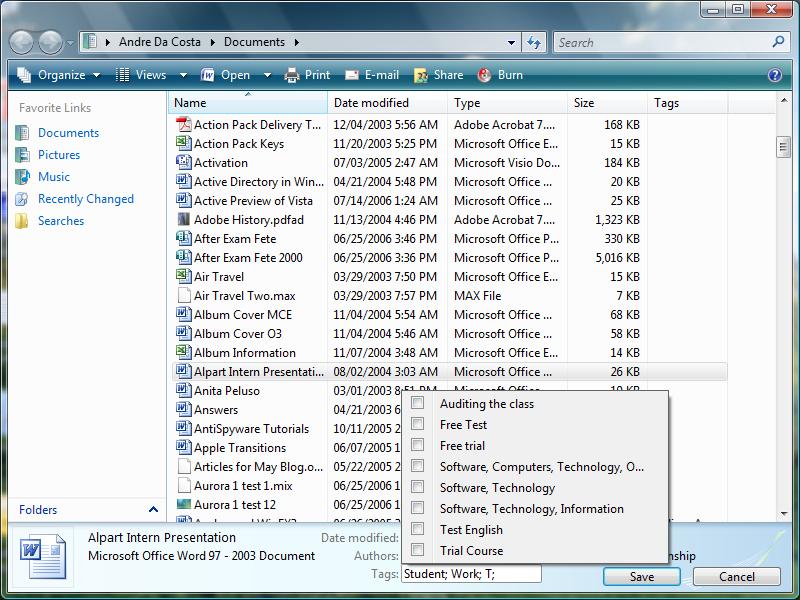
Hardware detection I would say in some areas is very superior to Windows XP, although a number of insignificant hardware devices were not installed out of the box such as my modem and HP scanner; I was able to successfully install both using existing XP Drivers. In the beta 2 release my 3COM 3C920 Ethernet adapter was not detected, which was my only gateway to my LAN or the Internet, I did not have immediate access to the XP Drivers. This was resolved though in the subsequent builds and I was able to successfully connect to the Internet and obtain drivers for undetected hardware and updated drivers through Windows Update. Other devices that were successfully detected and installed include my Canon A520 digital camera and printers, an old HP DeskJet 840c (Parallel and USB) and a Canon i320, unfortunately though my Motorola E398 Phone is not working fully with Vista, the built in Flash storage device was detected, but I am unable to use the modem capabilities which I regularly do on XP. Another device my SAN Disk Cruzer thumb drive seems to not be fully compatible with Vista x64, at times it will just hang the OS for no obvious reason at points triggering a BSOD. Windows Mobile Device Center, a new built in software that is supposed to replace ActiveSync only works with Windows Mobile based devices running versions 2003 SE and up software. My View Sonic v37 Pocket PC 2002 Premium device was detected and installed but not visible anywhere in the system for me to browse or exchange files between the device and my PC. It�s of fundamental importance though to have the essential devices installed, such as your modem and Ethernet, since I consider Vista to be a very Internet savvy OS. I hope to see more aggressive driver support for both x86 and x64 platforms post RTM, so far I have not been limited by driver support although earlier builds were known for unstable device drivers, support has remained pretty much stable since beta 2. To learn more about the available upgrade paths to Windows Vista, click here. The Welcome Screen which first debuted in XP has been improved to incorporate elements of the Classic log on of NT 4/2000 based operating systems while maintaining the simplicity of the XP style interface adding new elements such as hi-res profile images of each user account now listed in a horizontal layout. The tube appearances of these profiles are not as interesting as I would want them to be but are a change none the less that fits the updated look of Windows Vista. Missing are user notifications that accompany each account profile on the Welcome Screen, such as unread e-mail. The flexibility of being able to log into a Domain and at the same time Fast User Switch to access files in a local account will give users a more flexible experience that does not limit them to one environment. Speaking of Fast User Switching, my experiences so far has been disappointing, on my main desktop configured with 2.6 GBs of RAM, switching between accounts took a considerable amount of time compared to XP. Vista took about 10 to 15 seconds, while XP on the other hand took only 3 seconds. It seems the Windows Team is trying very hard to simplify the interface for users; it doesn't matter if you are a first time user or an expert. This is also evident in Internet Explorer 7, which features a very refined layout (discussed further down in this article). Evidence that the interface is being dumb down is apparent by the removal of Classic menus, which were always on in previous versions of Windows dating back to 98, in a sense, Vista is doing an ode to Windows 95 it seems. Organizing and changing the layout is done by the Command bar well, that�s what the Windows Team is hoping users do; I don�t know how successful that will be though. In earlier builds of Vista the Explorer and new Toolbar were very confusing and archaic, not providing certain functionality for changing the appearance of the interface, turning on or turning off features, it just wasn't logical and easy to use. I wish the Command bar itself still retained some customization capabilities of past versions of Windows. I would like to add buttons such as Cut, Copy and Paste just to speed up simple task I might have to do; this only gives me a good reason to turn on back Classic menus. In RC1, under Organize you have a submenu, Layout, which reveals additional options for customizing the Explorer window. Search and Reading Panes are two additional features; Search Pane basically adds options for filtering your queries by kind such as E-mail, Documents, Pictures, Music and many other option fields you can add, (this is the default layout for the Search Explorer available from the Start menu). File Management I would say has improved greatly since BETA 2, providing various opportunities for viewing, finding and manipulating your data in a more efficient way. The default view for folders and files are Details, which provides information such as File Name, Date modified, Type and Size. You can further modify and insert additional fields such as Title, Author and Tags, plus many more. Viewing the data is very flexible in Vista, in addition to Details View; you have Tiles, Small Icons, (which is reminiscent of List View), List View, Medium, Large and Extra Large Icons. The visually impaired will definitely have no problems seeing their files, of course certain program executables and file icons will look jaggy and pixilated if they are not designed to be resized at 256 by 256 which is the maximum size for icons in Vista. In the Documents folder, you can view files in a stacked view, which groups your files according to Name, Date modified, Type, Size and Tags. The Windows Team has returned the editable Preview Pane in RC1, so you are able to add Meta data information such as five star ratings on a music file, keywords for a document reducing the need to open the Properties dialog of a file, a convenient time saver, this in the end helps you personalize the Search experience in Vista.
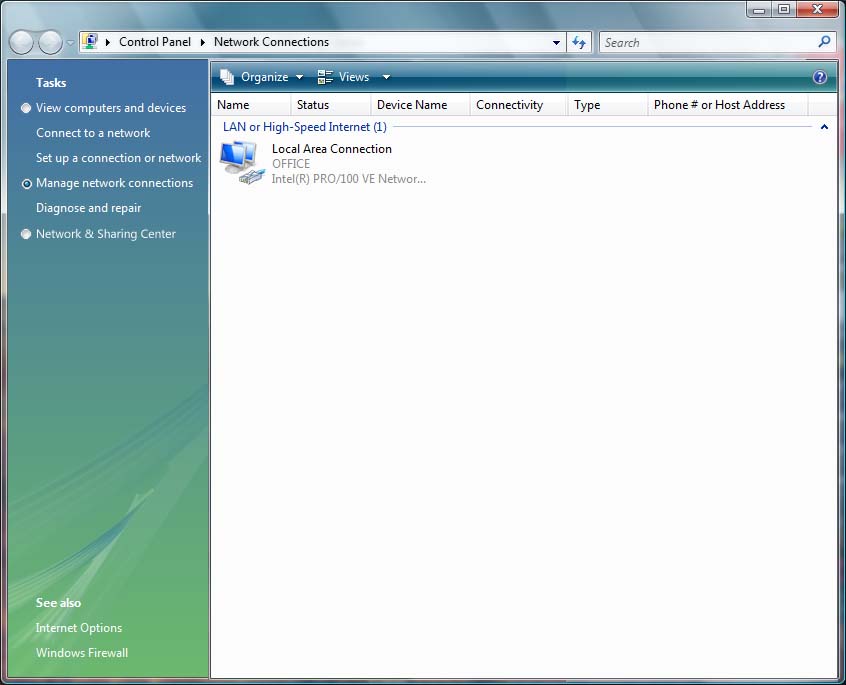
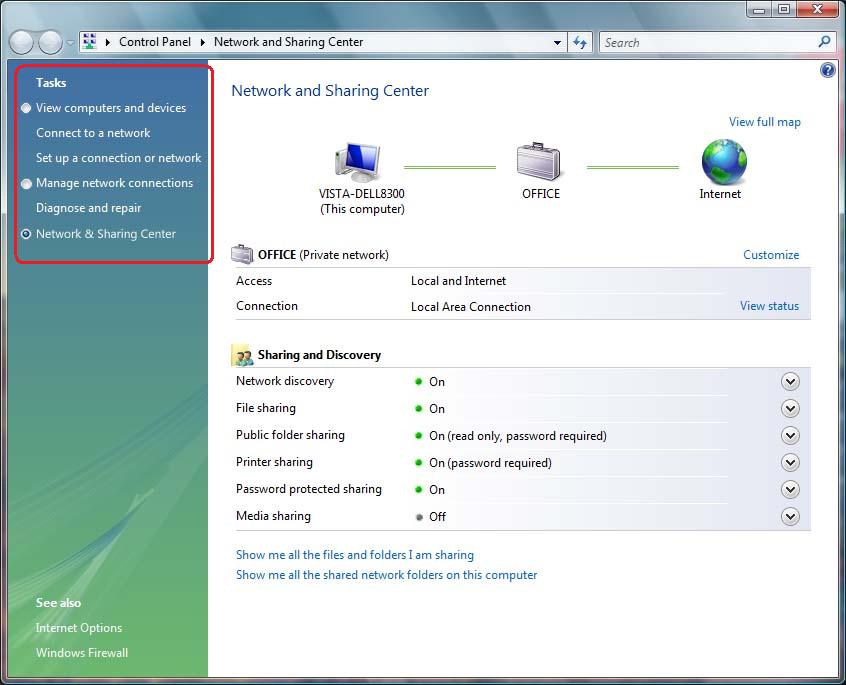
Networking has improved in several areas; there is a lot to say about it especially since 2001 with advances in areas such as Wireless and Bluetooth. My experiences lie mostly in the basic network interface card and good old CAT-5 Cable. Connecting two PC�s is very simple, whether both are running Vista or a combination of XP/Vista or even 2000. The new networking wizard has been simplified to provide a wide range of choices, and to get users connected either to a corporate network, share a high speed network connection, its also easy to setup a Virtual Private network, Wireless Network, and share/restrict users from accessing files on your computer. Security is of course an integral part of the networking experience in Windows Vista, with many attacks that have plagued Windows over the years; Microsoft has really made a concerted effort to improve the safety for users on Windows. By default, certain features are turned off, in the new Networking and Sharing explorer under Sharing and Discovery: Network discovery, File sharing, Public folder sharing, Password protected sharing, Media library sharing � are all turned off. So, if you are unable to access a computer or a shared location you will know why. I love the centralization of Network and Sharing Center, in prior builds I was badly disappointed by Networking overall in Vista, here is what I had to say about it: The networking wizard looks and feels clumsy. Common links are all over the place making the layout difficult for users to understand. You have these wizards with huge title bars that make you wonder why? It�s just not well thought out, and I wish there was more focus on consistency and ironically simplicity. I believe most of the functions first introduced in XP could remain the same and some could be slightly improved. For example, the Local Area Connection properties should be an Explorer instead of this same old dialog I have been seeing since Windows 95. Its just too much clicking, I had to open Network Center then click Manage Network Connections, right click the connection, click Properties, its a chore really. The primary focus has been lost and I think networking in Windows Vista has taken a definite step back. Come on, five to six windows for networking? Networking is still possible in Windows Vista and it can be accomplished with careful thought and planning. I was able to join a domain and network both my laptop and desktop using the traditional methods that we have known since prior versions of Windows dating back to Windows 95. I hope to see a miracle between now and Release Candidate 1 for areas such as this in Windows Vista, I just hope it�s not wishful thinking or even too late. Barb Bowman, Networking MVP did an excellent tutorial detailing all the new improvements to networking in Windows Vista worth reading here
Some of this is still true, and I think Network should be one location, consolidation is very important I feel. I want to see everything the first time I click Network on the Start menu or Desktop. I created a concept here of how Network in Vista and other Explorer�s in addition to dialogs could be handled and interacted better with Vista, check it out:
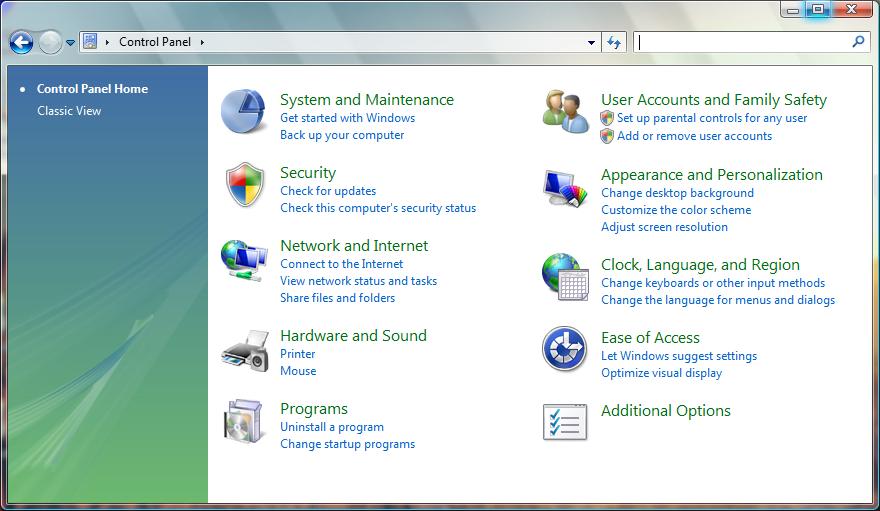
Some of this is still true, and I think Network should be one location, consolidation is very important I feel. I want to see everything the first time I click Network on the Start menu or Desktop. I created a concept here of how Network in Vista and other Explorer�s in addition to dialogs could be handled and interacted better with Vista, check it out: �������������� Here in my modal concept the simplicity of Networking in Vista is more logical and easier to navigate. I don�t need to have 3 separate Windows open; I can easily switch back and forth by selecting a radio box for either �Viewing Computers and Devices� or �Network and Sharing Center�. I also think the LAN connection could also be an Explorer instead of having to open up a dialog. There are slight improvements to Control Panel, Search is really essential in this area as the amount of applets have gone up from 28 in XP to 50 in Vista, although the simple view first introduced in Windows ME reduces the overwhelming confusion by consolidating all applets down to 10 categories, making it much easier to find the one you want. But the search really makes it much easier I believe; just type in a keyword and it will filter down to the most likely choice/s. I have to give Microsoft the credit though for trying to integrate uniformity throughout interface, I just wish they would have gone the extra mile, and apply this to every dialog. Areas such as Add/Remove Programs (now known as Programs and Features in Vista) is an Explorer instead of a different API, well thought out, it makes it easy to install, uninstall, view and organize your applications. The new account setup only allows users with Administrative privileges or a limited account to all operate as a Standard user with a set of specific requirements and a deeper awareness of the actions a user takes while performing task throughout the operating system, Microsoft recommends this account for daily use �finally�! You might wonder what the deeper awareness is; well it�s a new improvement to the security model in Windows known as User Access Control, borrowing from other operating systems such as UNIX, Mac OS X and Linux, the aim is to essentially provide a secured environment from top to bottom. A bit intrusive, the aim of User Access Control from the get-go is to enable a lock on certain administrative privileges throughout the OS, making it more difficult for users to expose areas of the operating system that are most vulnerable to attack or user accidents. So far, the status from the public on UAC is, it seems like a highly annoying feature, trust me, it is at times, no matter how much the Windows Team say they are improving the experience. A shield attached to an icon or beside a link can easily identify components within the OS that require UAC. When such a link or icon is clicked a dialog will pop up freezing the current user session asking for permission before continuing or executing the action. In addition to UAC, Windows Vista includes a revamped Security Center that displays notifications telling users when their system is fully protected, whether you have an installed or updated Antivirus, your Firewall AntiSpyware, Automatic Updates and Internet Security settings are turned on. I am not a big fan of application compatibility, mainly because I don�t like doing it and it�s a chore digging into boxes in my closet and garage for old software. But I did manage to test a few applications, these include Office 2000 Premium, which works flawlessly on Vista (do I need Office 2007?), various versions of Photoshop, 6, 7, 8 and 9, I prefer 6, because the Splash screen does not look screwed up like later versions on Vista, it seems the graphics system has an incompatibility with those artistic splash screens from Adobes most recent releases.
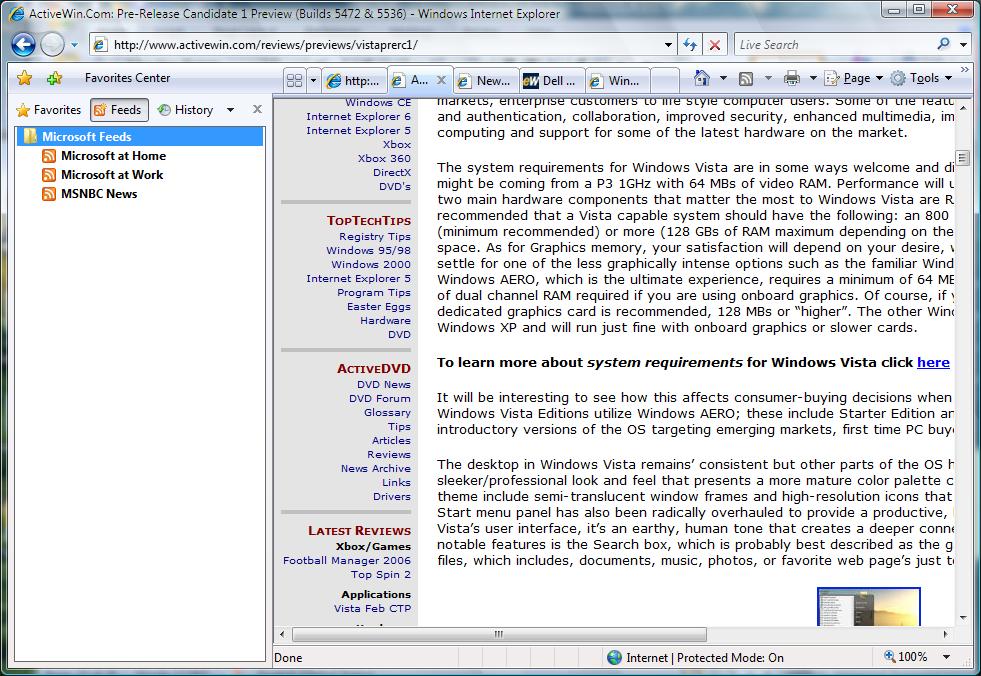
Compatibility is a tricky situation, with the millions of users out there and infinite PC configurations, with thousands of legacy applications, there will definitely be a lot of hits and misses. Factors include no support for 16 bit applications and 32-bit applications with 16 bit installers are not supported on Vista x64. Careful research and planning will be the key to making a successful transition to either x86 or x64 platforms for Vista. Company�s that create custom applications will have the biggest hurdle, ensuring that applications function just as they did on XP. Microsoft did announce that the next version of Virtual PC version 2007 will fully support Vista, this should provide Company�s to run legacy applications older versions of Windows while taking advantage of the new capabilities that come with Vista. Everybody knows Internet Explorer, whether you hate it or love it, it�s the most popular web browser around the world. Apart from the new user interface, which seems a bit squeezed, Internet Explorer 7 biggest features are Security and Really Simple Syndication. RSS allows the user to subscribe to their favorite Website�s and receive notifications of updates to those subscribed sites without the need to individually browse each to check for new information. An orange button (also used by FireFox) indicates when a site is RSS enabled, click it and you are presented in a Feed view of the particular site, which you can then save and add to your collection of feeds in the Favorites Center. You can set the browser to download new updates automatically at certain intervals. It�s a new take on accessing information and will take some getting used to; the pervasiveness of this innovation will certainly be assisted and promoted by the popularity of the Internet Explorer platform providing users a more efficient and faster way to get the information they need whenever they want. If you have been using IE 7 on either XP or Vista, one of the first things you might notice is the disintegration between it and Explorer, for example, if you type a URL in the folder�s address bar, the IE window will be launched separately, compared to IE 6 on XP, the Explorer was automatically utilized. It seems Microsoft is realizing that tying the browser to Windows wasn�t such a good idea after all. As for security, IE 7 includes some advanced technologies; Protected Mode allows users to have a safer browsing experience on the web, so things such as malicious software will have greater difficulty getting installed onto the system, (please note, this feature is only available in the Vista version of Internet Explorer 7). IE 7 also provides Standard users with the flexibility of installing software without the need for administrative privileges. Another part of the secure browsing experience in IE 7 is Phishing Filter, which prevents the user from revealing personal or critical data to sites that pretend to be legitimate, such as your bank or a reputable merchant. Included is a no add on version of IE 7 located under Accessories > System Tools, which is basically a stripped down version of the browser that does not load ActiveX Controls or third party extensions in the browser, although I notice I could still do so if desired. The improvements to these areas of IE make experiences such as e-commerce less risky and provide a more confident and trust worthy browsing experience for the user. The interface is a drastic departure from past versions, but it�s definitely a change for survival. The navigation buttons back/forward and the Address Bar have been merged to provide a more simplified navigation layout, but another reason could also be attributed to Tabbed browsing which is finally now a part of the IE interface. Tabbed browsing is a very convenient way to reduce Taskbar clutter and provide a centralized way to keep all of your open sites accessible from one IE window although I would preferably have my tabs not integrated with the menu bar, (it steals real estate). Some nice features include a Gallery view, which displays a thumbnail preview of all your open windows; other notable features include drag and drop rearranging of Tabs. Common interface elements, buttons such as Home, Print, Feeds and Favorites are spread across, Stop and Refresh button are now also a part of the Address bar, which in a sense is a more logical integration when you think about it. It�s almost difficult to describe the new layout as I sit here, you could best summarize it as one toolbar that contains everything. Integrated Search is also visible at the upper right corner of the IE window, which defaults to Windows Live but provides users the option of choosing another Search provider if they wish (mine is set to Google of course). The Favorites Center represented by a star, host your favorite websites, Feeds and History. A new Print Preview and fit to print feature finally allows for text be printed as seen on screen without chunks being cut off. Another user experience improvement is the ability to restore your IE settings if the browser becomes unstable. This process deletes all Internet Explorer Temporary files, disables browser add-ons and resets all changed settings, basically it turns IE 7 into a virgin again. For almost 6 years now, Internet Explorer has been long in the tooth when it comes to new releases because of Microsoft�s previous stance on releasing major new versions of the browser with major new versions of Windows, but the trade off was a major blow and it was called innovation, while FireFox dawned on users with features such as tabbed browsing, built in download manager (still missing from IE 7), enhanced security and a grass roots following that has since propelled the browser to over 200 million downloads, around 15% market share. The question now is can IE 7 catch up? I would say yes of course, since the popularity of Windows plus the bundling with it will definitely give it a secured opportunity to continue its dominance way into the future. Version 7�s acceptance also will further be influenced by its disintegration from the OS, which will be seen as a safer move to provide the secure experience Windows users have been longing for. IE has just as much or even more of a cult following than many of the browsers out there, plus the millions of businesses that have tied specialty applications to the platform will further ensure that there is a secure moat around the Enterprise, keeping FireFox at bay for a long time. Windows Calendar Windows Calendar is a basic yet functional daily calendar, with options available for publishing and subscribing to .ics calendars, which includes settings for controlling how often it gets updated with new event dates. As noted, it�s basic, but provides most of the common features most users are looking for in a day-to-day calendar. The interface feature�s a consistent look with the Windows Mail and Fax programs. A blue command bar displays common buttons such as New Appointment, New Task, and options for viewing your calendar in different layouts; daily, weekly and monthly. In earlier test releases, I had a little issue with the controls at the bottom of the window; they were not distinct enough in their own right. Buttons such as New Task, Events or layout views were difficult to decipher, I am glad to see this improved. Windows Mail Windows Mail is a different name, with a familiar look and feel; the Windows e-mail program has improved a lot though since its introduction in Windows Vista. The interface has been updated slightly, with a new blue command bar that I consider being a bold look, it�s consistent though with Windows Calendar and I guess it�s just uniformity across the Windows productivity applications. Noticeable of course and I have to say one of the best features is the Word Wheel, this makes filtering through and finding e-mail messages or newsgroup post so much easier. Just press CTRL + E and the cursor places it self in the search box in the upper right hand, (this also applies to Explorer windows). Windows Mail also takes advantage of the Anti-Phishing capabilities included in Internet Explorer 7. Suspicious or Phishing e-mails are marked with a red shield, when viewed the heading is highlighted in pink indicating the severity of the message. So, you don�t end up giving personal information to sites that claim to be legitimate such as the �buying copies of Norton or your Pay pal account has expired�, the usual suspects. There is still a lot of work to be done and I believe the effectiveness of the junk filter itself is about 50% accuracy. I still see a fair amount of Spam in my inbox after the filter automatically moved suspicious mail to the Junk folder. Other features that users might find of great interest includes the new Mail Store, the use of .dbx has now ended. This will remove the frustrations that users have encountered for many releases of Outlook Express when it came to backing up and migrating Mail settings and accounts, simply back up your Mail folders and import on another Vista computer running Windows Mail and you are all done. It has been finalized that there will be no support for free Hotmail or Live Mail accounts in this release of Windows Mail, grand fathered accounts have been said to be able to still access the service, but I have not been able to accomplish this with my accounts. I still believe there could be more done to the user experience in Windows Mail, such as subscribing to multiple newsgroups, I would have liked to simply check off the groups I am interested in and click subscribe instead of doing it one by one. Also, Office Outlook style integration with the Windows Calendar would make it more convenient instead of opening multiple applications all the time; the only integration between the two is a link to launch the Calendar from the Mail command bar. Still, the update is a welcome improvement over Outlook Express, which has been long in the tooth, features such as Word Wheel, easier migration of mail settings, Phishing Filter and Communities Rating tools will make communication less of a chore.
Windows Vista is all about multimedia, the interface reflects it and the new Windows applications plus the updated ones ensure that users embrace it in a whole new exciting way. Some of the new features in this area include, built in DVD Burning (Windows Movie Maker with DVD burning capabilities), Photo Management, Media Center and Windows Media Player with built in support for watching DVD movies. It�s not a spectacular feature, but more of a logical step that has found its place in Windows; DVD burning capabilities is a welcome feature that will provide more storage opportunities when it comes to backing up data. When Windows XP first introduced CD burning capabilities, it was seen as an about time feature, with DVD burning being an integrated part of the OS, there is also no need for third party drivers which provides a great out of the box experience. Next up is Photo Management, as far back as Windows 2000; users had the My Pictures folder as their only form of storage management for images. With Vista, things have changed for the better, included is a new application based on Microsoft�s commercial offering Digital Image Pro. Photo Gallery offers photography aficionados a convenient way to manage and share their digital memories, with additional basic tools for editing and creating. The first time you launch the application, you basically see a bunch of sample media content. There are a couple of ways to get your personal photos into Photo Gallery. If you have photos backed up on media such as DVD or CD and copy them into the User > Pictures folder, they will be automatically populated into the Windows Photo Gallery. If you have photos stored on your digital camera, you simply import them by clicking File > Import from Camera or Scanner, select the device and click import. You can also use the Auto-Play feature to tag your photos before importing into Windows Photo Gallery. It�s not Photoshop, it�s not Photoshop Elements, but it�s good enough for what most persons might want to do with their images. Photo Gallery presents photo editing in a light hearted, fun way, that doesn't turn the process into a chore, which is probably how I would describe some of the more popular, professional offerings on the market. Photo Gallery is really a hallmark application in Windows Vista, bringing new life to the user experiences first introduced in Windows XP, advancing those capabilities and giving you new avenues that can help you further enjoy and share the memories you create. The Management capabilities are awesome; integration with additional Windows applications is definitely a winner. The integrated experience will really make this a trademark of the Windows Vista built in applications. I love it and learning new and exciting things everyday. The more I use it, the more I enjoy it. Check out my February Preview of Windows Vista 5308 at ActiveWin.com for more in-depth interaction with Photo Gallery here Media Center for me is considered as the front end to the digital media experience in both the two feet and 10 feet environments. The interface has evolved since BETA 1 and continues to be refined to provide a more natural, simplistic approach to accessing your media. I see Media Center as an opportunity to escape the complexity of the Windows interface and provide an alternative experience that�s more friendly, easy to use and navigate. Common locations store your music, photos and videos, you can even watch DVD�s from within the Media Center Interface. I love the slide show effects, pretty much similar to the slide show tool in Explorer. The navigation controls are really nice; it blends in with the image to provide a natural look and feel that�s just awesome. I was not able to use some of the advanced features since Media Center is not really a supported product here in Jamaica, so features such as recording TV shows or just watching TV were not available for me to review. But it still doesn�t mean that the software is useless, like I said it�s a cool alternative to managing and viewing your multimedia and lessens the complexity that is typical of the Windows interface at times. The navigation in Media Center is a bit different, using a horizontal approach, it should provide a more logical and easier to �get a hang of� response by users who use it on large wide screen televisions. I must note though, it�s a resource hog, launching and importing media into the program is very slow. Some of the categories take too long to open when clicked; I counted to ten when opening the Picture Gallery, its even worst when it comes to Video, all I see is a black screen and an hourglass. I know I am not testing this on the latest and greatest, but I at least was expecting to see some respectable performance out of the application especially this far in development. Comparing Media Center to prior versions, I would flatly say performance makes the Vista version a looser so far. I am still not giving up though and I hope to see some improvements by RTM before I make a final decision.
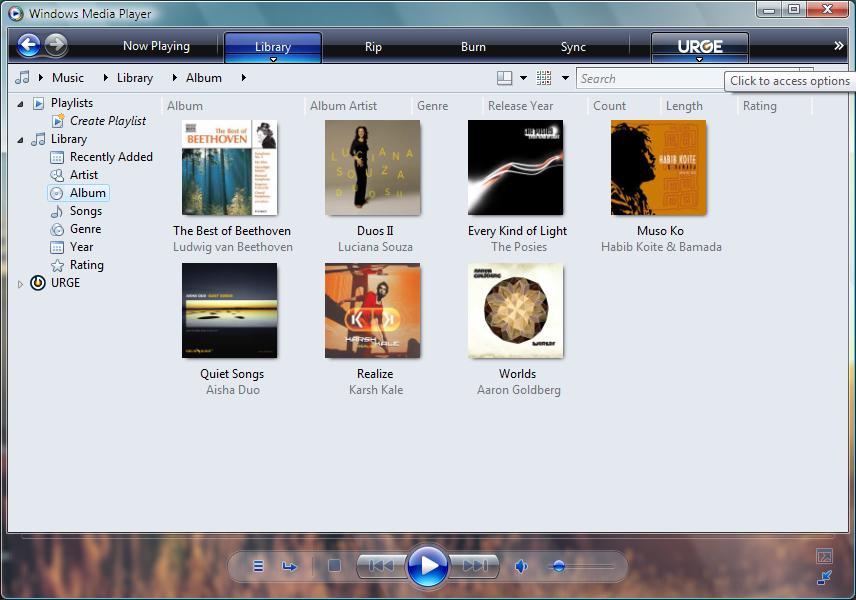
Media Player 11 I have to say is a major stand out in this release, featuring a superb semi- translucent user interface; this update is all about enjoying your music in style. Apart from the new UI, the productiveness of Media Player has improved very much with Gallery view for your entire music collection. This provides a visually stunning way to interact and manage your music. You can view by genre, artiste, alphabetical or year, which displays your album in stacks, which is pretty cool! In earlier builds I had issues selecting folders on another partition with audio files, the folder would just not import, this has been resolved since and is functioning just fine. In Windows x64, there is also a native 64-bit version of Media Player 11 (available in the Program Files folder), but is not the default player, users of the 64-bit platform should be happy to hear that, but I won�t be so quick to jump for joy until I start seeing the native 64-bit codec�s to fully support it. Media Player 11 also includes a codec for watching DVD movies, which is really nice; I can watch in full screen or player mode and select different chapters. The biggest feature though is probably the new URGE music service, which was first announced at CES in January 2006. Unfortunately, I was not able to fully use the Service since it is not localized for the Caribbean (English Jamaica), presently it supports only English Canada and US. URGE is a culmination of multiple music channels incorporating their endless libraries of music, from MTV, VH1 and MTV networks, surprisingly BET is not one of these. I assumed it would be since the parent company for all four are VIACOM. The word that would best describe URGE is WOW to the third power; the collection is enormous and just mind-boggling. You get an extensive collection of music that�s available right there along with your own personal music collection. Setting up an account is relatively easy, you are asked to use your e-mail address and a password to sign in, and the URGE logo will then appear on the menu bar in the player interface for you to access at anytime. You are allowed to authenticate your account on 3 computers, deactivation takes 30 days. It�s the seamless integration that�s really amazing, blurring the gap between your collection of music and the URGE music library making it so easy to buy and manage your music at the same time. You might wonder why I designate the Sidebar as a part of multimedia, well, it�s not an out of the box business feature to be honest and you could have it turned off and never notice a difference about your Vista experience. Instead of tiles that were once a part Alpha builds of Vista (codename Longhorn); the Sidebar now uses small individual applications known as Gadgets. The Sidebar in build 5308 came with only 5 Gadgets; they were Feed Viewer, Launcher, Recycle, Slide Show and World Clock. The new ones included are Calendar, Clock, Contacts, CPU Meter, Currency (converter), RSS Feed, Note, Picture Puzzle, Slide Show, Stocks and Weather, a total of 11 Gadgets, I hope to see more in the final product when it is released; you can also acquire more online from http://www.microsoftgadgets.com. According to Brandon Leblanc of MSTechToday, Gadgets are developed using a combination of XML, Java Script, HTML and CSS. If you want to learn more about developing your own Gadgets, or download some, check out the following URL: http://microsoftgadgets.com/Sidebar/DevelopmentOverview.aspx You can easily add a Gadget by clicking the Plus sign button at the top of the Sidebar. A window will then appear showing a gallery of all the Gadgets available for you to use. Simply select a Gadget, drag it onto the Sidebar and release. Some Gadget�s have personalized settings for you to configure, hover your mouse pointer over one, and click the wrench that appears and a dialogue will pop out from under the Gadget revealing options for configuring it, you can also right click and choose Settings if you find that easier. For example, I hovered over the Slide Show Gadget, clicked the wrench, so I could set the location of my images for the slide show could start. The Sidebar also includes a Control Panel applet so you can configure the frame. It�s hard to see the current value of the Sidebar, I want Gadgets that encourage and inspire me. Since the release of build 5536, the stability of the Sidebar and Gadgets has greatly improved, but I still see performance lag when loading on startup. The desktop loads in about 10 to 15 seconds, but the Sidebar�s frame is there waiting on the Gadgets to appear, just three of them too, Slide Show Viewer, Clock and Notes which took about 15 seconds to load on both Vista x86 and x64. I also wouldn�t mind an Auto-Hide feature for persons with limited resolution. To learn more about the Windows Sidebar, be sure to check out Scott Lowe�s introduction here Some of the more technical features of Vista are what I would consider to be ready for the mainstream. For instance, all Editions of the OS except for Starter Edition will be available in 64-bit flavors�. The interface and features are identical in every way to its x86 counterpart except for compatibility with 32 bit device drivers and 16 bit applications. The advantages of a 64 bit Windows for consumers is not immediately seen, but power hungry users such as scientist, number crunching business intelligence users will see the deep benefits of being able to handle up to 128 GBs of RAM, although there aren�t any Workstation�s that can hold that amount of memory, its comforting knowing the capability is there I guess. Driver support is still an issue for 64-bit Windows, but with the aim of making 64-bit computing mainstream through Windows Vista, developers will support the platform more readily I believe. I personally have not had any driver issues with Vista x64 except for the thumb drive hanging the system when plugged into a particular USB port, everything else works just fine. All built in Windows applications are 64-bit native such as Windows Movie Maker, Photo Gallery although there remains a 32-bit Internet Explorer to maintain compatibility with web extensions that might not have been updated. Performance is still an issue, and even on the RC 1 release of this product I truly have to say I am not satisfied. From installation to general use, the 64-Bit version of Vista feels groggy, running applications such as Office 2007 take a hit, applications take much longer to launch and at times become non-responsive (hopefully the Office 2007 BETA 2 Technical Refresh will resolve these issues). Hardware is also another factor when it comes to performance and 64-bit Windows, and I honestly believe to get a satisfactory experience, a dual core processor with at least 2 GBs of RAM and a 256 MB video card or higher is a recommended minimum. Microsoft has also announced all kernel mode drivers must be signed before they can be installed. This will ultimately be a benefit for the consumer to provide a more reliable experience, the essential aim, which is to reduce system failure as a result of device drivers, you can�t go wrong there. Check out my ActiveWin Windows XP x64 Edition review here
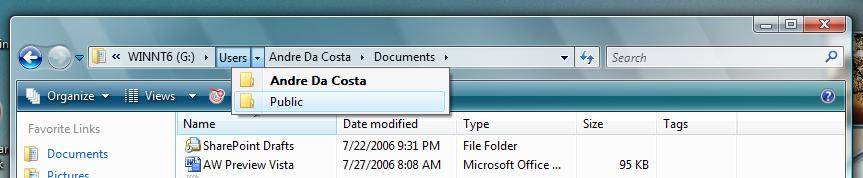
The account folders have been tweaked a bit with a few name changes here and there. The Document and Settings folder has been replaced by the Users folder, within which you will find all user account folders on the system. The Local Settings folder has been rearranged with the AppData folder formerly Application Data which now house local and personalized settings for applications installed on the system such as your Outlook .PST files, Mozilla Profiles and Microsoft Word dictionary if you have those applications installed. Windows XP: C:\Documents and Settings\Andre Da Costa\Local Settings\Application Data\Microsoft\Outlook Windows Vista: C:\Users\Andre Da Costa\AppData\Roaming\Microsoft\Outlook As you can see from the above examples, there is no significant improvement over the new arrangement; it takes the same six steps to navigate to the Outlook folder in Vista just as it did in Windows XP. Well, there is one benefit, the shortening of the mouthful �Documents and Settings� to �Users� and �Application Data� to �AppData�. Two new backup utilities Backup and Complete PC Backup are included with support for CD/DVD media, partitions and external hard disk. I consider this to be an essential feature that makes it very simple for users to keep their data safe in a number of ways, its easy to restore your files since the Complete PC Backup software (only available in Enterprise and Ultimate editions of Vista) process creates an image of the data (.vhd format), so its pretty much pre-configured and requires only a few mouse clicks. I notice a minor delay when Backup and Restore Center was detecting the hardware I was planning on using for backing up the data. It�s not critical, but it almost seems like the program had hanged. Another aspect of backup in Vista is �Previous Versions�; to be honest it�s awkward, based on Windows Server 2003�s Volume Shadow Copy Service. Here is Microsoft�s explanation of what Previous Versions does: You can use previous versions of files to restore files that you accidentally modified or deleted, or that were damaged. Strange, I edited an image three times after which I checked the properties of the file > Previous Versions tab and there were no backups, previous versions or even the original file. I don�t think this is a guaranteed to always work feature, I am still experimenting with it, hopefully when I start using it more often I will give it the thumbs up. But my assumption was it would just keep an original or a series of the file every time it was edited. Windows Meeting Space is a new collaboration feature that allows users to setup Ad Hoc Based meetings. You can invite users to a presentation and share handouts; it�s almost like a virtual meeting room. Of course doing this over dial up is not recommended or probably not even possible, using the app stressed by DSL connection but worked perfectly over my LAN. It�s a very easy application to use and I am sure the benefits will be quickly realized in today�s world of high speed/wireless networks. Windows Performance Diagnostic Console provides monitoring of performance and reliability using Microsoft Management Console (MMC) snap-in. From a single console you can monitor system performance in real time, customize what data you want to collect in logs, define thresholds for alerts and automatic actions, generate reports, and view past performance data in a variety of ways.
Figure 1.7 Internet Explorer, RSS, Securitysome of the cool new and improved technologies in this release, features such as built in Tabbed browsing will provide users with a convenient browsing experience. Disk Defragmenter has changed in Vista, instead of being activated by the user, the program runs in the background at all times to maintain the performance of your computer. Compared to prior versions, Defragmenter in Vista looks and feels dumb down and does not offer the graphs and real time monitoring that users were accustomed to prior versions of Windows. Familiar features such as Scheduling and Defrag now are available but that�s about it. The ultimate aim is to keep the performance of Windows in tiptop shape over time. XP and prior versions of Windows have always been known for their bit rot excellence over time; hopefully Vista puts an end to that. Windows Ready Boost is one of the great new technologies in Vista that allows you to speed up your computer by utilizing a memory flash device such as USB 2.0 Thumb drive to improve performance by caching data frequently accessed by the operating system. When a USB Stick is plugged in, the Auto Play dialog will list an option to speed up your computer using the device. If you click it, you will be taken to the Ready Boost Properties of the device, from which you can configure, by adjusting how much memory you would like to allocate to the system. Vista will also support future hardware such as flash based hard disk that also cache data and speed areas of the operating system such as boot up sequence. Figure 1.A4
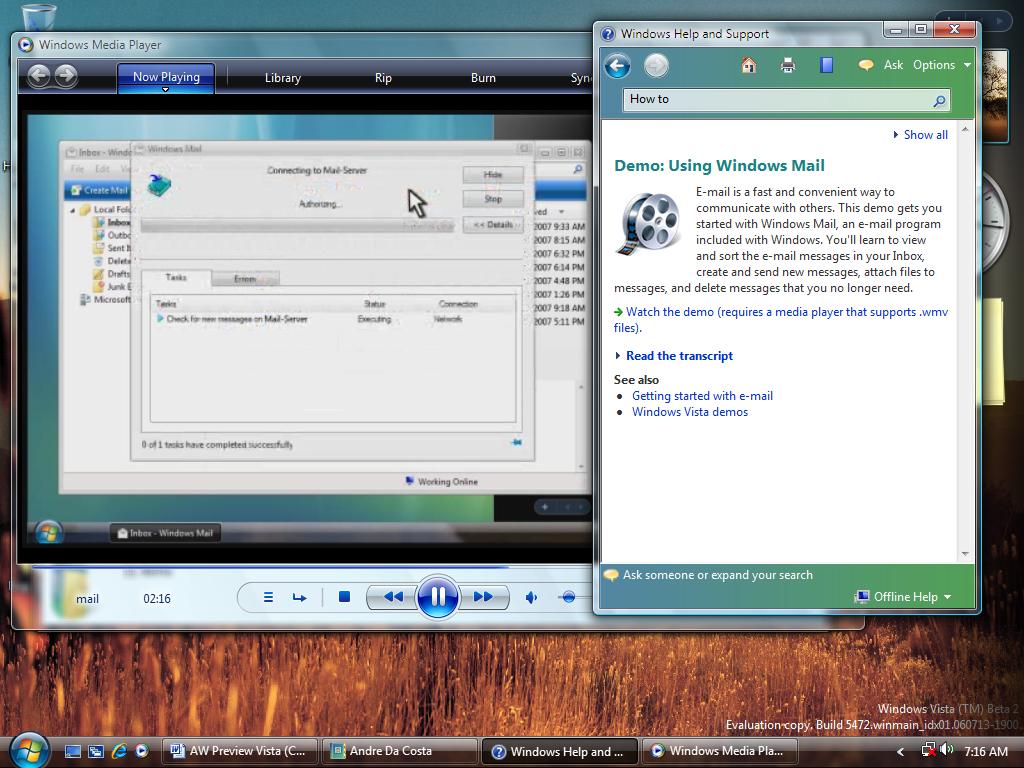
I don�t know about you, but XP�s Help and Support looked much richer to me. I don�t like the layout that much such as the centered Search field and the back/forward navigation button positioning. Apart from the visual inconsistence�s Support Services provides new video based tutorial training content to give users an overview of features in the OS. Windows Update has been slightly improved in the usability area, you can now postpone your updates, a new Windows Update Explorer is also included which allows you to configure, view/manage your updates before installing them.
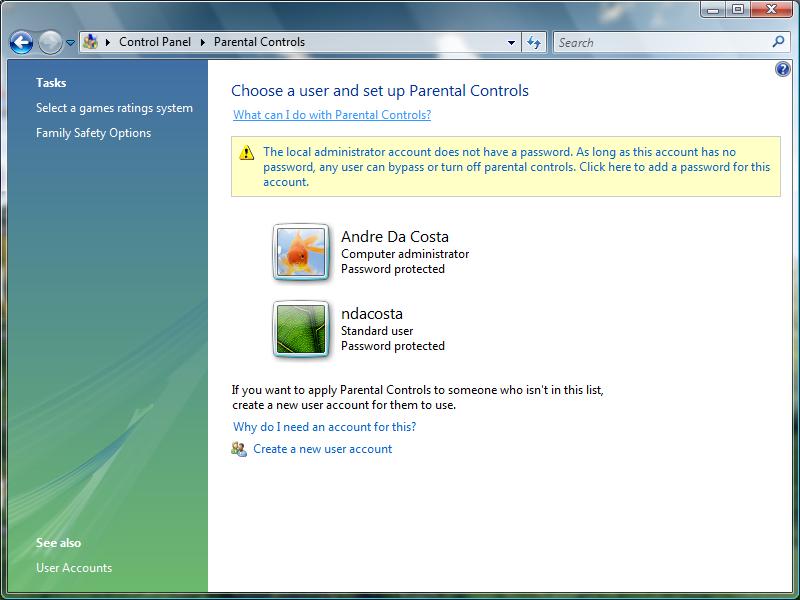
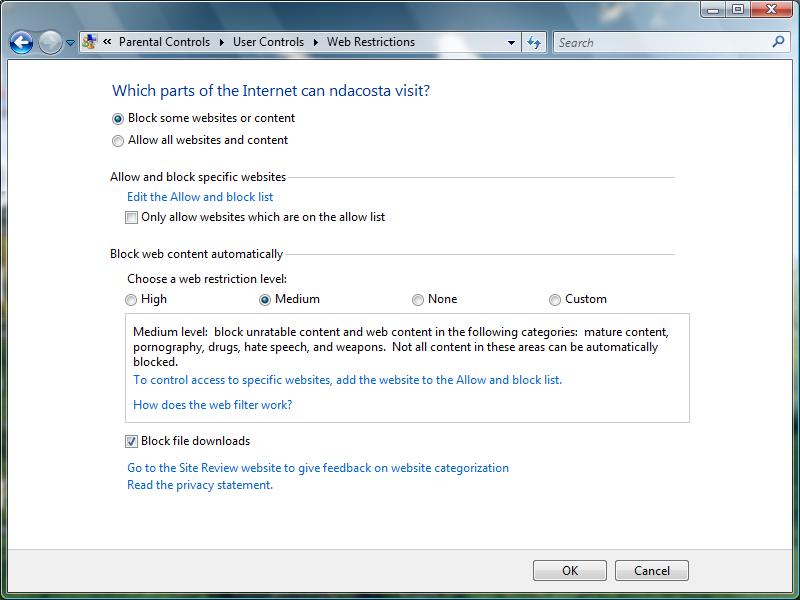
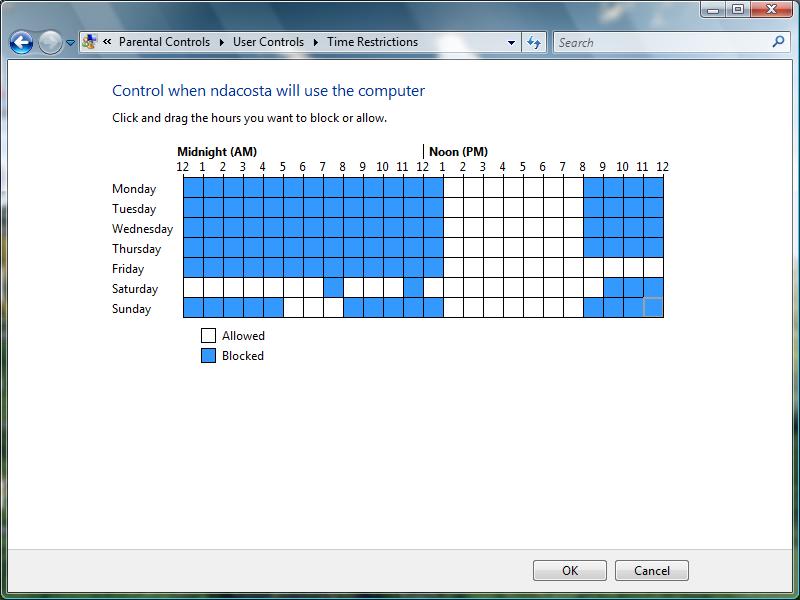
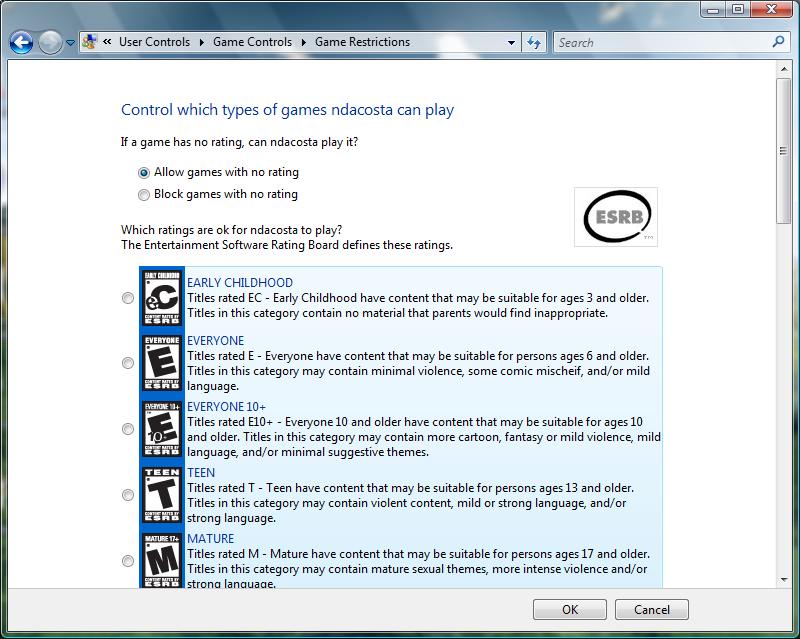
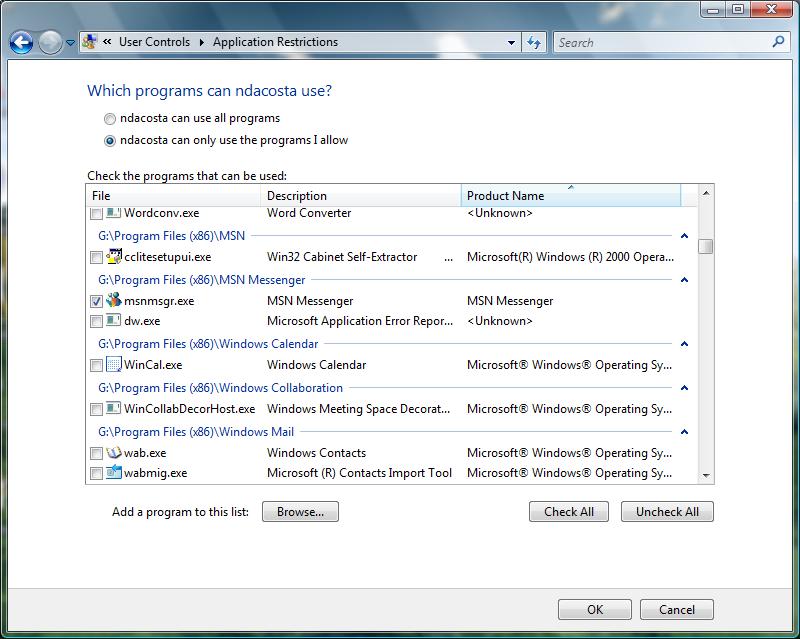
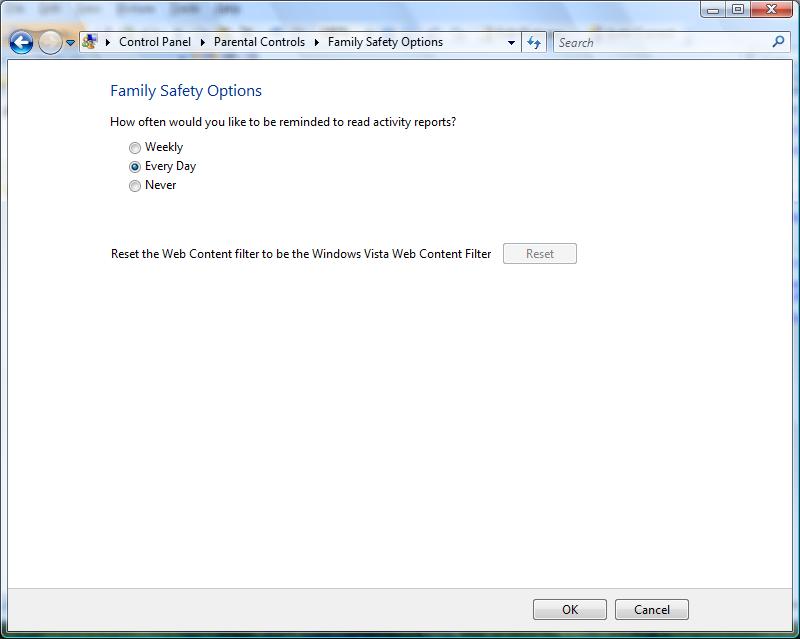
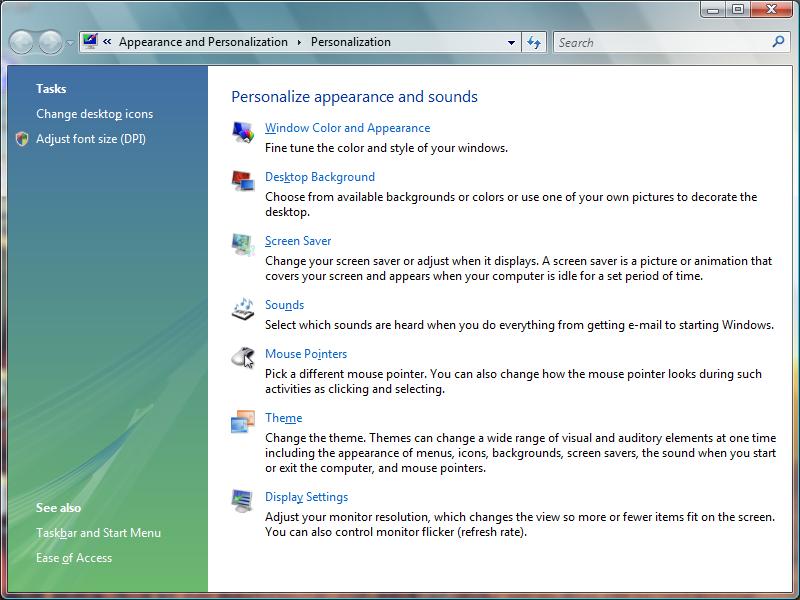
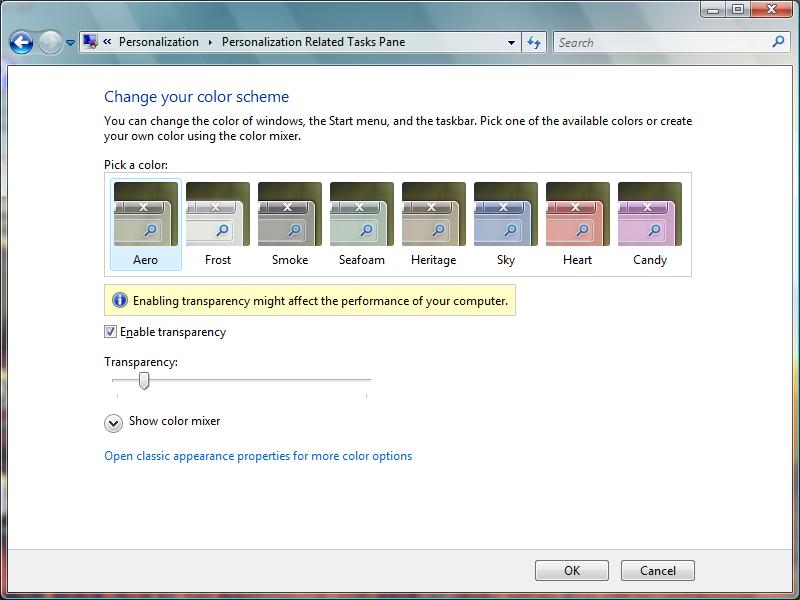
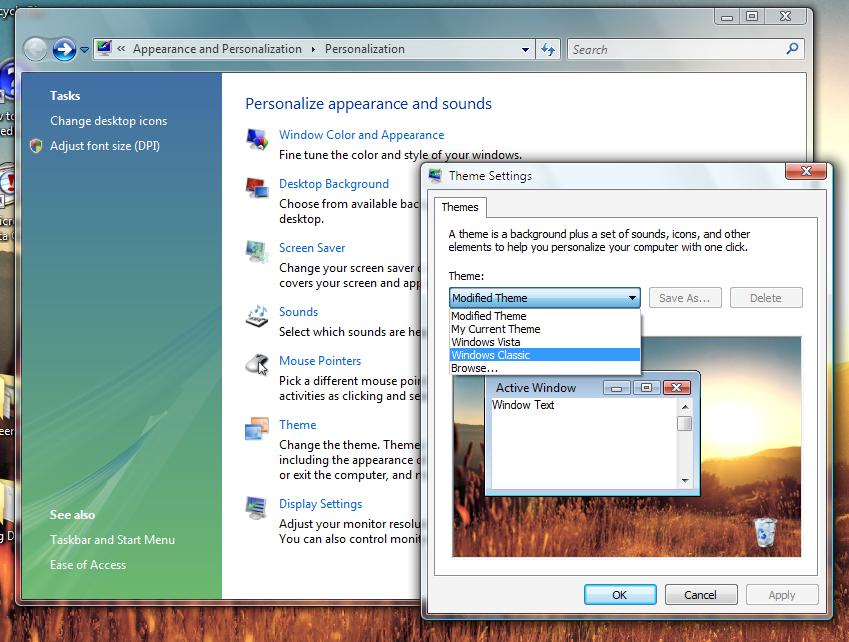
A new Personalization Explorer is included which is the equivalent to Display Properties, from here you can change your Desktop background, Themes, Screensavers, Sounds, Mouse Pointers, Icons and Display Settings. I am not all that pleased with this new layout, I was hoping the Windows Team would used collapsible panels similar to the Desktop background panel instead of having to open and close a separate dialog every time. I think it�s only added more mouse clicks to something that was already doing just fine. Of course, most of the features I have discussed are just some of the standouts most consumers are likely to interact with on a regular basis. Vista does include some less spoken about but handy features built right in. Some of them include Parental Controls, XPS Document Writer, Speech Recognition, Snipping Tools and Sound Recorder all which should be considered new or improved features in Windows Vista. Parental Control�s is a new addition to the user management component of Vista. You are able to have better control of what your children are doing on the PC. For example you can collect usage reports, do web filtering, set time limits, control games by rating, content, title and even block programs. I wish there was a better approach to control and organization though over which applications I would like the user to access, maybe a link to all my installed applications under Programs and Features with a check box beside each would make it more convenient, the mix up of system components with third party applications is really confusing. The fun part of Parental Controls for any parent is probably the Activity Reports which gives an excellent and very detailed report of log on times, applications run, e-mail, media player and instant messaging activities, some of the common and most likely things a concerned parent would like to keep track of. Parental Controls tells us that Microsoft cares and are really concerned about how our children use the computer for communication and finding information through the Internet. Ten years ago, the Internet was a small extension of the desktop that was available to a select few. With today�s pervasive internet, the risk are higher, we have seen cases of teenagers and much younger being solicited in chartrooms, over instant messaging and most recently with the advent of social networks such as My Spaces young children being lured away from home to take drugs and become molested. Of course, Parents have a greater role to play, and Parental Control�s in Windows Vista is one of the tools there to help them regulate and control their child�s experiences on the PC and Internet. When you see what XPS does, the first thing that might come to mind is Adobe�s PDF. Well, it has a similar approach for creating documents by using a printing engine, similar to Acrobat Professionals Distiller. The XPS Printer is by default the installed printer if you don�t have a physical one setup. Files sent to the XPS Printer are viewed through Internet Explorer; there is an available add-in for Internet Explorer 6 on XP and Server 2003. It would be convenient if Microsoft does not limit this to just IE and open up the specifications to other popular browsers such as FireFox and Opera. It is not known if XPS will be integrated into the final Vista code, but the capability of saving documents is available to all Vista applications, Office 2007 applications out of the box also support it, but permanent status is still unknown. Taking advantage of it is very simple, just Click File > Print and select the XPS Document Printer, click OK, save your file and your done. Launch the file, which opens in Internet Explorer 7, here some of the familiar Acrobat features begin to show themselves, you can Sign the document, add permissions, search and view the document at different zoom rates. XPS makes it simple for Vista and XP users to exchange, share and view documents without the necessary applications installed. I see the potential and I see the opportunities, but for it to be a success it still has to be platform agnostic regardless there are 850 million Windows PC�s out there, hopefully in the near future Microsoft will open this up. The Speech Recognition engine has been greatly improved to provide a more natural experience for the end user. With little practice, I have seen significant improvement over Speech in XP. Setting up Speech in Vista is also friendly and intuitive, a wizard helps you configure your Microphone after which you are taken through a Wizard/Tutorial which introduces you to some of the basic commands and functions you can use to navigate the operating system and launch applications such as your word processor. I must still admit, practice is essential to get this feature working well, but I guarantee you, it�s worth it, the important requirements remain, quiet room and speak loud at a consistent vocal tone. After the practice/tutorial, a floating speech applet appears which you can turn on or off by using the �Turn On/Off� speech command. It�s pretty cool, when you say, �Start� > �All Programs� > Microsoft Office > Office Word� and actually see it work. But as soon as I started speaking in Word, everything went south � again, practice, practice. My experience was brief but it was certainly encouraging, Microsoft has definitely done an overhaul here that�s easier for those interested in such technology. I remember in XP, you could practice the speech recognition until thy kingdom come it would never make a substantial difference in improved accuracy, Vista changes that for the better, and I consider it to be one of the great highlights of the new OS. With Snipping Tool you are able to crop screenshots of the desktop or a Window or an application, it is a handy little application meant for Tablet users but is just as useful to desktop users. You can save your cropped image as either an HTML file or JPEG image format for further editing. Another less talked about change in Vista is the new default typeface, called Segoe UI which is one of six new font type�s designed just for the new OS. Segoe UI replaces XP�s Trebuchet MS and provides a more legible appearance that makes it easier to read text on screen, whether it�s a semi-translucent background or word document. Poynter.org has an introduction to all the new typefaces here. Speaking of fonts, a very interesting discussion has started about UI consistency in Vista and Microsoft�s lack of effort or possibly interest or resources to update aspects of the UI such as the Install Font dialog. You would be surprised to know, this component is an exact replica from Windows 3.1.
So this has been my experience with Windows Vista, �so far�. I recently tried upgrading from XP x86 to Vista x86 (you can check out ActiveWin�s visual tutorial here), Quote: �Installation in Vista is a very straightforward experience, its almost unattended; you only need to be at the computer during the initial phase of set up and the Out of Box Experience page. Installation time varies, factors include memory and processor speed, my clean install of Vista took around 42 minutes (others have reported 20 to 30 mins), while the upgrade took a lot more, nearly 5 hours.� The big question for many persons is, whether the move to Vista will be worth it, I wish there was an easy answer. Vista I would say is a major evolutionary improvement over XP in areas such as Security, but it becomes a bit hard to justify the upgrade knowing so many of the things in Vista could be easily had on XP today with a simple click of the download button or purchase of third party applications. IE 7 will be made available as a free download for XP users, so the RSS and some of the security issue�s are already taken care of. You can run as a limited user if you want to have that �extra� secure experience, Windows Defender will also be free for Windows XP users. Features such as MCE are pretty much useless to �me� regardless of how cool it is, but I am not fully using the product because of its lack of support here. I don�t own a Tablet PC and don�t see the value in owning one (I type faster than I can write); I have Digital Image Pro, which gives me all the features of Photo Gallery. Gadgets so far have been uninspiring; the effects such as the Aero Glass theme are stressful on the system, Aero Basic is a dramatic step back from the XP themes. It�s so hard justifying it right now, but some user�s will, the question is how many users are willing; also Windows Desktop Search for XP pretty much takes care of some aspects of the Instant Search capabilities in Vista. But I am an exception, many of these new features will be an enticing value proposition to those who want a great out of box experience, so they can take advantage of devices such as camcorders, digital cameras, hi-definition television�s, XBOX�s and PDA�s (that is if they get Windows Mobile Device Center working by RTM), Vista certainly promises to bring it altogether. So, looking at it from one user�s perspective is probably not the best way to decide if you should upgrade to Vista or not. But I would note the best way to move to Vista for many consumers would be to purchase it with a new PC pre-loaded, especially in my case. With many new editions of Vista, Microsoft I believe is making it much easier to choose the OS that�s right for you, hopefully with the pricing revealed it will help to make the decision easier. Enterprise customers will see great benefits too, features such as the new image based deployment, Unix Subsystem, Encryption and Virtual PC 2007 will make managing Vista systems and transitioning to them much easier. Developers will also see an increased benefit; Windows Vista will definitely carry the Windows Platform forward, with new opportunities in areas such as the new communications and presentation subsystem and the .NET Framework 3.0 will give developers a set of tools to create connected, secure, beautiful applications (hopefully). Its a long way coming from the first few public Alpha builds, but all was not lost, much of what Microsoft promised has been delivered, the lost of WinFS has not impacted Vista as much as the reset that took place in August 2004. No doubt about it, Windows Vista is friendly and makes Windows easier than ever to use. A much-simplified interface will definitely be a boon to users, integrated search and new ways of handling data that continues to fill those ever growing hard disk, will make Vista a need than want choice for many users. The big question is can Microsoft communicate the benefits to the awaiting audience in January successfully? Miscellaneous Screenshots
|
 |
||||||||||||||||||||||||||||||||||||||||||||||||||||||||||||||||||||||||||||||||||||||||||||||||||||||||||||||||||||||||||||||||||||||||||||||||||||||||||||||||||||||||||||||||||||||||||||||||||||||||||||||||||||||||||||||||||||||||||||||||
 |
 |
||||||||||||||||||||||||||||||||||||||||||||||||||||||||||||||||||||||||||||||||||||||||||||||||||||||||||||||||||||||||||||||||||||||||||||||||||||||||||||||||||||||||||||||||||||||||||||||||||||||||||||||||||||||||||||||||||||||||||||||||||